

Monitor connections can affect a desktop PC’s gaming performance.
Connecting your monitor to the motherboard instead of the graphics card can reduce gaming performance or leave you with a blank screen.
A monitor cable mistake can leave a gaming desktop using less capable graphics despite having a dedicated graphics card. Connecting the display directly to that card, rather than the motherboard, normally avoids this problem.
Many desktops have similar display connections in both locations, so the same cable can fit either. However, motherboard video outputs typically rely on graphics integrated into the processor rather than the dedicated card.
Integrated graphics can handle basic tasks and less demanding games. But they generally cannot match a dedicated graphics card, leaving players without the performance their hardware could deliver.

Why the monitor cable mistake affects gaming
A motherboard connection does not always leave the dedicated graphics card idle. In some Windows configurations, the card still renders games and passes the frames through integrated graphics.
However, that arrangement can add processing overhead, with the impact depending on the hardware. Microsoft does not specify a percentage performance loss for this configuration, so some players may not immediately notice a problem.
Other systems may show a blank screen instead. Intel desktop processors with F or KF suffixes lack integrated graphics, so their motherboard video outputs will not work.
Some PCs also disable integrated graphics when a dedicated card is installed. A blank display therefore does not necessarily indicate that the graphics card has failed.
Find the correct port and check display settings
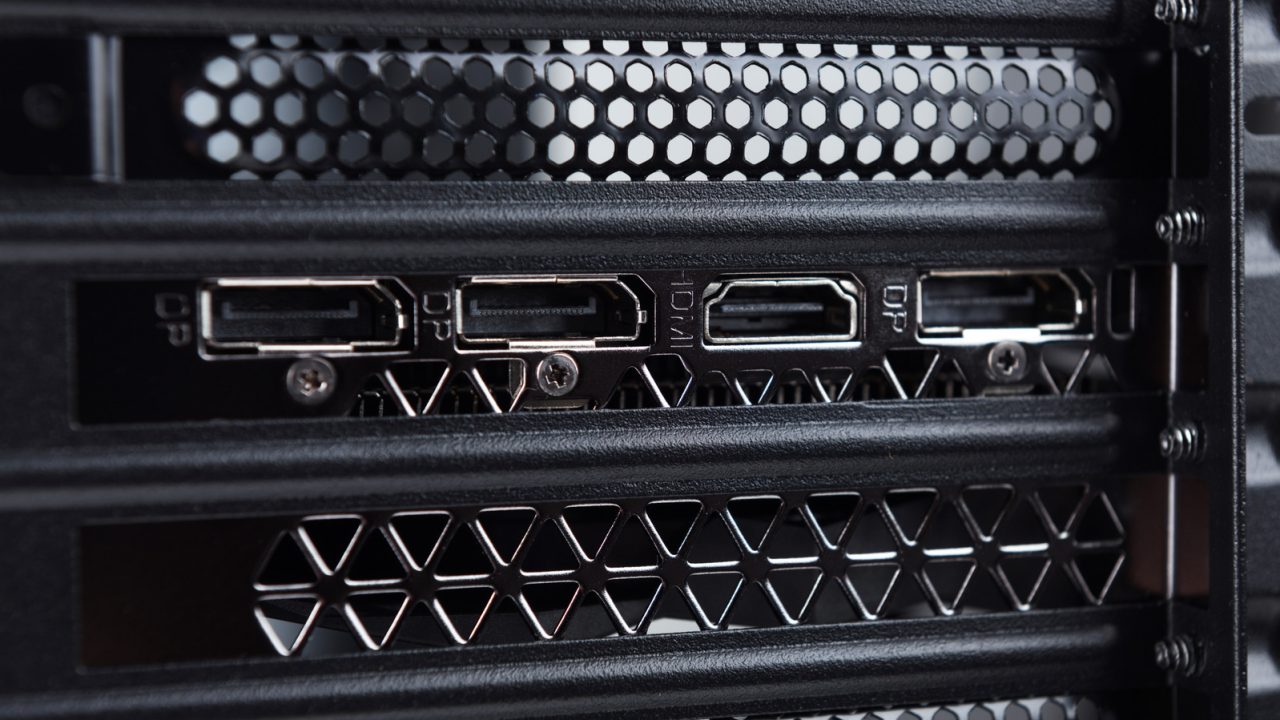
Motherboard display ports usually sit alongside USB, Ethernet and audio connections. Meanwhile, graphics card outputs occupy a separate expansion bracket, typically lower down on a conventional tower.
Those outputs often run horizontally, but orientation varies between systems. Check which ports belong to the graphics card, then turn off the PC before moving the cable.
Next, select the matching input on the monitor. Both HDMI and DisplayPort support high-refresh-rate gaming when the card, screen and cable support the chosen resolution and refresh rate.
If HDMI already delivers the settings you need, there is no reason to buy another cable. Also, check Windows 11 under Settings, System, Display and Advanced display to confirm the refresh rate.
A 100Hz monitor set to 60Hz shows only 60 updates per second, regardless of what the graphics card renders. If the screen stays black after switching connections, try another graphics card port or cable.
Before checking the card’s power connectors or seating, shut down and unplug the PC. A compatible system can also run a second monitor through the motherboard if integrated graphics remain enabled.