

Connected devices, standby settings and software glitches may trigger unexpected starts. These checks could help stop them.
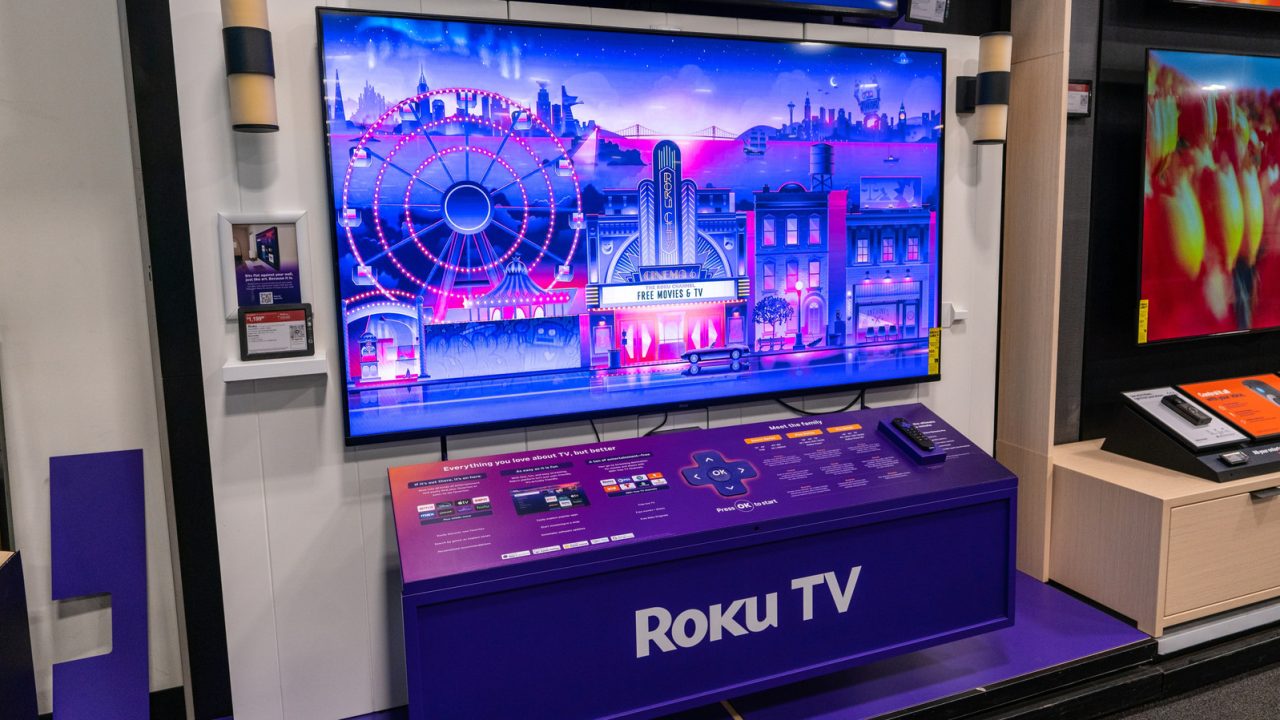
Roku power problems have left some TV and streaming-device owners dealing with unexpected overnight starts. Possible triggers include software glitches, commands from connected equipment and settings that keep televisions ready for voice commands.
These unwanted starts do not affect every Roku device, and the suggested fixes offer no guarantee. However, owners can check several settings before resorting to disconnecting their televisions each night.
What could cause Roku power problems?
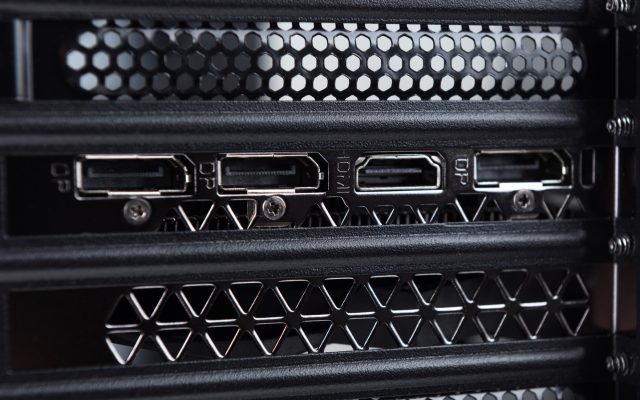
One possible trigger is HDMI-CEC, a feature that lets connected entertainment devices work through one remote. It links equipment such as televisions, soundbars, receivers and gaming consoles through their HDMI connections.
When one component switches on, it can signal other connected devices to start too. However, a faulty signal or compatibility problem can cause unexpected power-ups or changes between inputs.

Roku calls its version of this feature 1-Touch Play. Other brands use names including Samsung Anynet+, Sony BRAVIA Sync and LG SimpLink. Although these features share a standard, manufacturers add their own software, which can complicate communication between devices.
Fast TV Start offers another possible explanation because it keeps the television’s operating system running in the background. This allows quicker starts and keeps the TV ready for voice commands, even after you switch it off.
Software glitches may also play a role. Owners reported unexpected starts following Roku OS 15.3, but that timing alone does not establish the update as the cause.
Settings to check and fixes to try
First, check for an operating system update on your Roku device. Updating the software is a troubleshooting step, rather than a confirmed solution to unwanted power-ups.
Next, try disabling 1-Touch Play. On your Roku TV, open Settings > System > Control other devices, then uncheck 1-Touch Play.
Also disable HDMI-CEC on connected equipment, including gaming consoles and audio devices. Because manufacturers use different names for the feature, look for the relevant setting on each component.
Then turn off Fast TV Start through Settings > System > Power > Fast TV Start. Clear Enable Fast TV Start or select Off, depending on the options shown.
If the unexpected starts continue, unplugging the television after viewing offers a temporary workaround. Alternatively, a smart plug can cut power automatically. Owners can also contact Roku technical support for further help.