


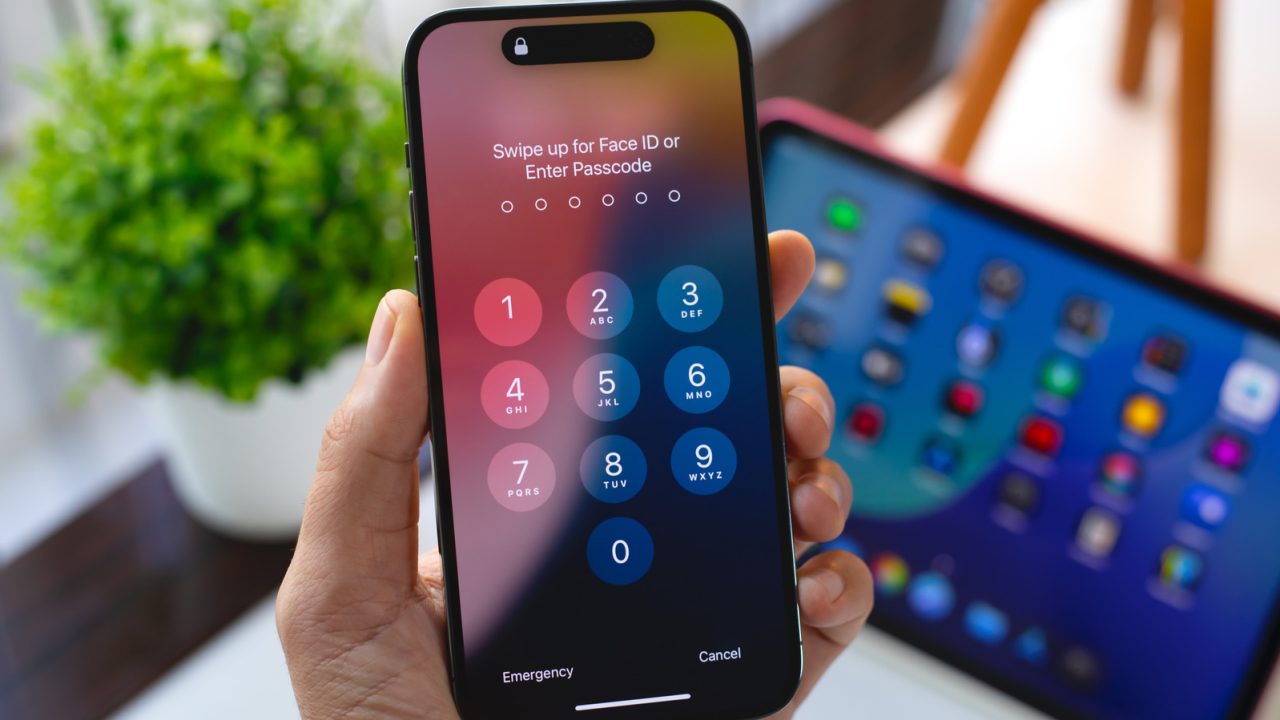
Switch Control supports alternative inputs for navigating an iPhone or iPad.
The accessibility feature supports adaptive controllers, gestures and shared controls across compatible devices on the same Wi-Fi network.
Apple Switch Control lets people use alternative inputs on an iPhone or iPad to operate other compatible devices. The accessibility feature supports external adaptive controllers, head movements and hand gestures, helping users with limited mobility navigate screens.
Its Use Other Devices for Switch Control option extends those controls beyond a single device. Users can select another compatible device and operate it with switches they have already configured.
However, the devices must share a Wi-Fi network and use the same iCloud account. Users also need to enable Switch Control across the devices they want to connect.

How to set up Apple Switch Control
To begin on an iPhone or iPad, open Settings, select Accessibility and turn on Switch Control. Then open the Switches menu and choose Add New Switch to configure an input.
Follow the onscreen prompts to assign an external controller or gesture to a specific action. These assignments provide the controls users will later apply to another device.
Once the switches are ready, return to the main Switch Control menu and select Device, then Use Other Device. The menu displays compatible devices connected to the network.
Next, choose the device you want to operate using your existing switches. To end the remote session, select Stop Using Device in the same menu.
Controller options and repeated actions
Although Switch Control is an Apple feature, users can choose external controllers from other manufacturers. Microsoft’s adaptive controllers, for example, can serve as switches for assigned actions.
Standard game controllers also work, alongside Bluetooth keyboards and other devices that connect through Bluetooth or USB. This gives users input options beyond equipment designed specifically for accessibility.
In addition, Switch Control includes Recipes, which let users record and replay sequences of inputs. Some users have applied these sequences to repetitive actions in mobile games and other apps.
Others have used the feature to turn pages in the Kindle app. These uses extend beyond basic navigation, while the feature’s central purpose remains helping people with limited mobility select items and move through screens.