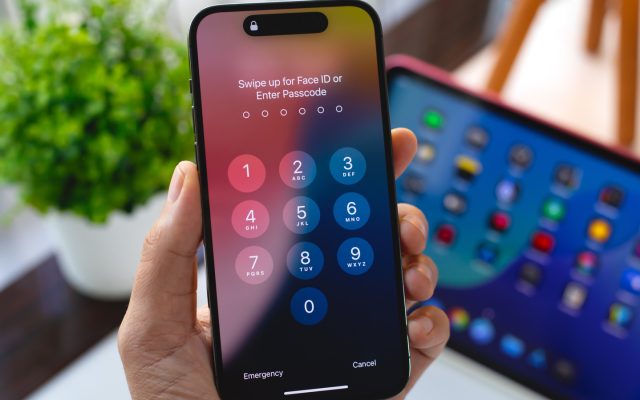



Network settings provide a device’s private IP address.
Check your public address online or open your device’s network settings to find its private address.
Finding your IP address starts with knowing which one you need: public or private. Websites see the public address your internet provider assigns to your home network. Meanwhile, your router gives each connected device a private address for use within that network.
The router translates between these addresses, allowing several devices to share one public identity online.
Find your public IP address online
For a quick check, open DuckDuckGo and search for “what is my IP”. The search engine displays your public address above the results. Alternatively, WhatIsMyIP.com shows the address, your approximate location and your internet provider’s name.

However, the address you see may change over time. Most home connections use dynamic addresses, which can change after you restart your modem or router. Static addresses, meanwhile, mainly serve systems such as website and email servers.
A public address usually identifies an entire network rather than one person or device. Websites and advertisers can also see it and may use it to build a picture of your interests.
Check private addresses on Windows and Mac
On Windows 11, right-click the taskbar’s network icon and select Network and Internet settings. For wireless connections, choose Wi-Fi, then your connected network. If you use a cable instead, select Ethernet.
Next, scroll to IPv4 address in the technical details. The four groups of numbers separated by dots identify your device’s private address. Windows 10 follows a similar route, although Wi-Fi users may first need to select Hardware properties.
Alternatively, open Command Prompt and enter ipconfig. Look for IPv4 Address under your active connection.
On a Mac, hold Option while clicking the menu bar’s Wi-Fi icon to view your address. For wired connections too, open Apple menu → System Settings → Network. Then select your connection, choose Details and open TCP/IP.
Find mobile and router network details
On an iPhone, open Settings → Wi-Fi and tap the i beside your network. Then scroll to the address entry.
Many Android phones follow a similar route through Wi-Fi settings. Tap the information or gear icon beside your network and look for IPv4. However, manufacturers arrange these menus differently.
For Pixel phones, use Settings → Network & internet → Internet. Next, tap the gear icon and open Network details.
Your router also has an address, usually labelled Default Gateway or Router. Enter it in a browser to reach the router’s settings page. Windows users can also find it in the ipconfig output.
These details can help with troubleshooting, especially if restarting fails to restore your connection. You may also need them when setting up printers, game servers or remote access.