

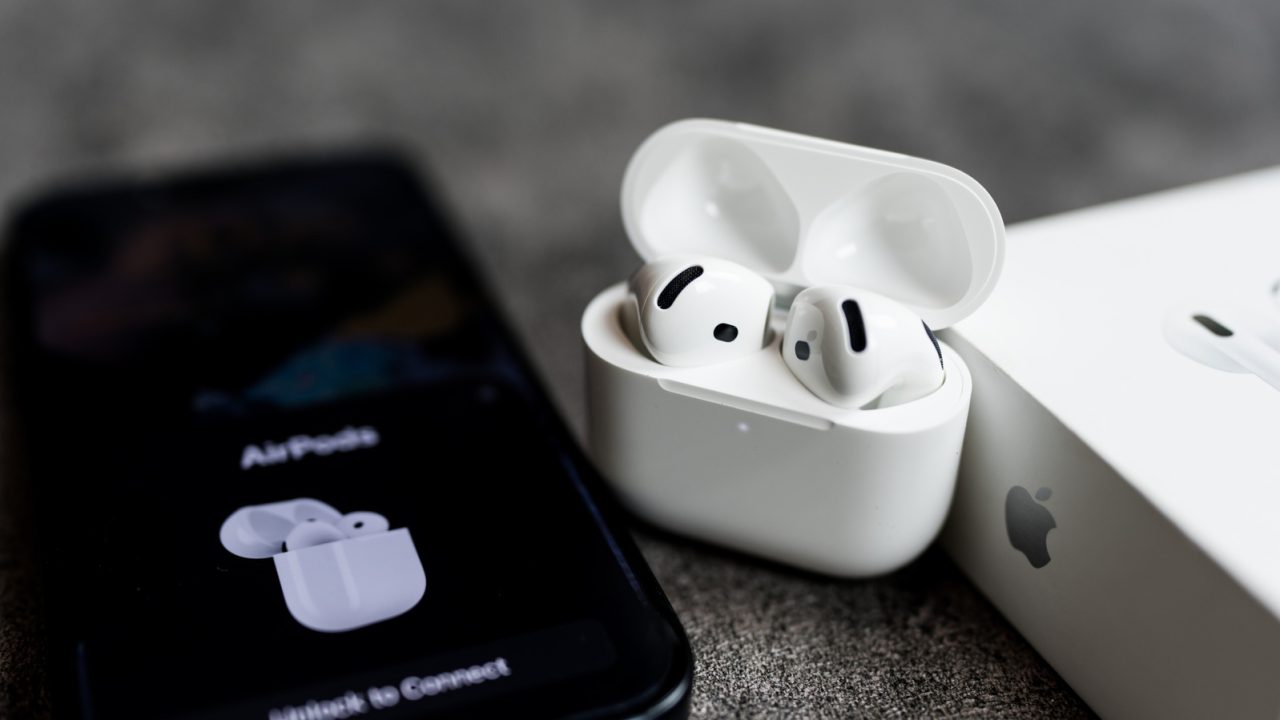
Charging, Bluetooth and software checks can help resolve AirPods pairing problems.
Check charging, Bluetooth, device switching and software before resetting AirPods that will not connect to your iPhone.
AirPods connection problems can stem from drained batteries, disabled Bluetooth, outdated software or automatic switching between Apple devices. Checking these settings and charging the earbuds may restore the connection without a replacement.
If those steps fail, resetting and pairing the AirPods again offers another troubleshooting option before contacting Apple Support.
Start AirPods connection checks with charging and Bluetooth
A completely drained battery in the earbuds or charging case can stop AirPods appearing on your iPhone. Place both earbuds inside the case, plug it in and allow a few minutes for charging.

Then check whether the case lights appear and try connecting again. Dirt or earwax on charging contacts can also prevent charging, even when the earbuds sit inside the case. Try cleaning the earbuds and case with a soft cotton swab.
Next, open Settings on the iPhone, select Bluetooth and make sure the toggle is on. Put the AirPods in your ears and tap their name if they appear in the Bluetooth list.
Also check the audio output in Control Center. The AirPlay button within the media controls lists available audio devices, including connected AirPods.
Check automatic switching and software updates
AirPods linked to your Apple Account can automatically move between an iPhone, iPad and Mac. However, that convenience can direct audio to a device you did not intend to use.
Even an email notification on a Mac can trigger a switch. Pressing play on the iPhone usually brings the earbuds back to that device.
Outdated software can also contribute to connection trouble. For iPhone updates, open Settings, choose General and select Software Update.
To check AirPods firmware, open their menu in Settings and scroll to Version. Compare that number with Apple’s latest firmware information. If an update is necessary, connect the AirPods to a charger and allow about 30 minutes for the automatic update.
Reset the earbuds if basic checks fail
If the AirPods still do not appear with Bluetooth enabled, try resetting and pairing them again. The reset controls vary by model.
For older earbud models with a rear case button, place both earbuds inside and open the lid. Then hold the button for about 15 seconds.
For AirPods Max, hold the Digital Crown and noise-control button together for about 15 seconds. Follow the pairing instructions that appear on the iPhone.
However, persistent problems may indicate a hardware failure. Contact Apple Support to request a replacement if troubleshooting does not restore the connection. A replacement may be free under the one-year warranty or an AppleCare+ plan.